Integrate USP Using the JS SDK
Who is this for: Web developers with an existing MomentPerks JS SDK integration who want to add the User Selected Perks feature.
Outcome: Enable USP in the Multi Offer Unit by defining a pub_user_id and configuring the SDK, allowing users to select offers before completing a transaction.
Overview
You can integrate User Selected Perks (USP) with your existing Moments implementation using either the JavaScript SDK or the Moments API. This guide explains how to integrate USP specifically using the JavaScript SDK.
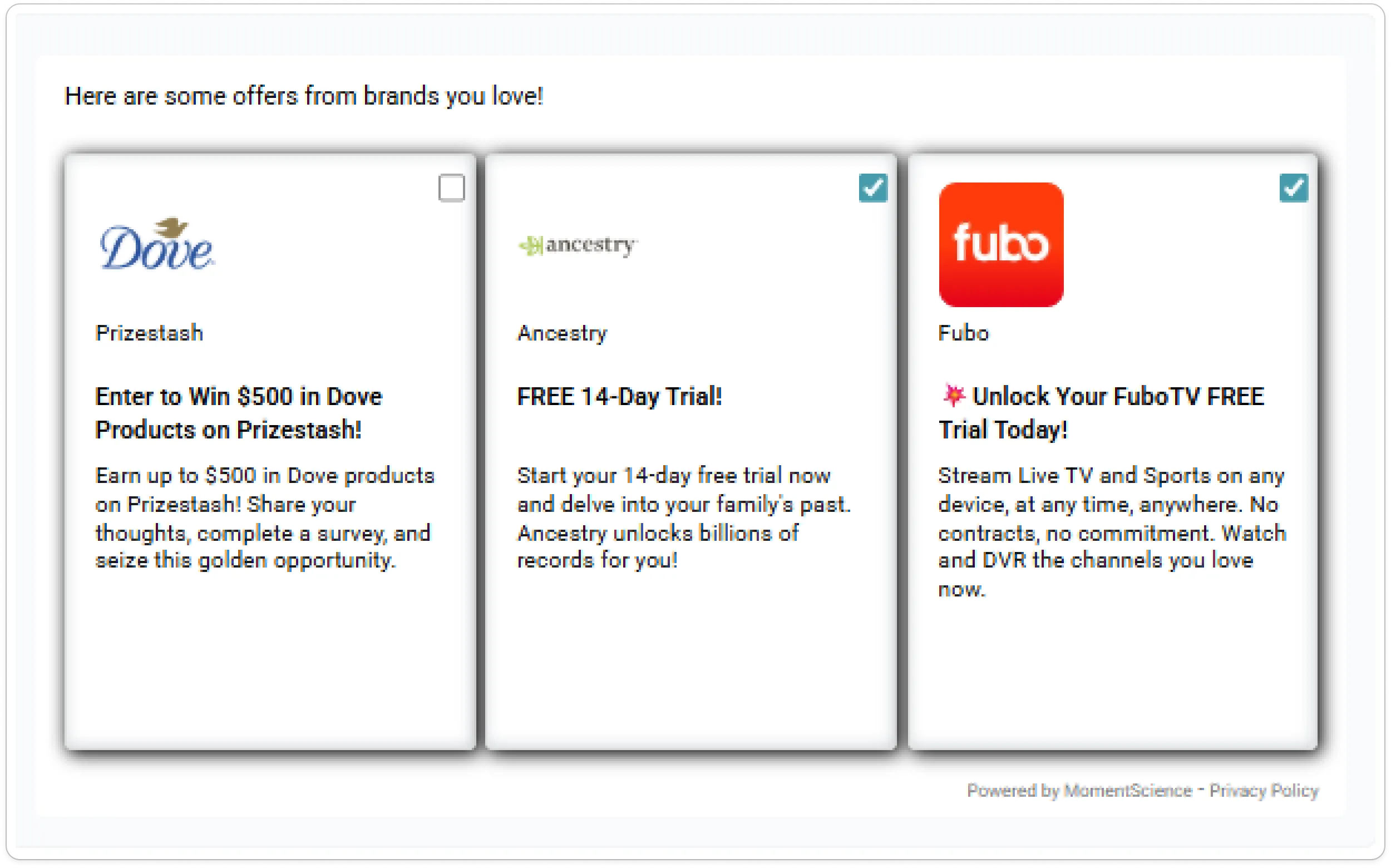
USP is only compatible with the Multi Offer Unit (MOU). A maximum of 3 offers can be displayed. You must provide a valid pub_user_id to uniquely identify users across sessions.
Prerequisites
Before starting, ensure the following:
- You have an active MomentPerks integration using the JavaScript SDK.
- Your theme in the dashboard has USP enabled (or will be overridden in configuration).
- You are using the Multi Offer Unit, not the Single Offer Unit.
Integration Steps
Step 1. Define pub_user_id
USP requires a unique, consistent identifier for each user. Define this identifier in window.AdpxUser
Requirements for pub_user_id:
- Must be unique per user
- Must be consistent across sessions
- Must be non-PII (do not use email addresses or phone numbers
window.AdpxUser = {
  pub_user_id: 'unique_user_123',
  // other user attributes
};
Step 2: Configure USP in window.AdpxConfig
Add USP-related settings to your SDK configuration using window.AdpxConfig. Ensure your selected theme_id has USP enabled in the dashboard, or override it directly in the configuration.
window.AdpxConfig = {
  accountId: 'your-account-id',
  autoShow: true,
  prefetch: true,
  theme_id: 'USPEnabledTheme',
  settings: {
    multi_offer_unit: true,
    enable_usp: true,
    usp_all_offers_checked: false // Optional
  }
};
Explanation of Settings
Setting | Type | Required | Description |
|---|---|---|---|
multi_offer_unit | Boolean | Yes | Must be true. USP only works with Multi Offer Unit. |
enable_usp | Boolean | Yes | Enables User Selected Perks. |
usp_all_offers_checked | Boolean | No | When true, all offers are pre-selected by default. |
If USP is not enabled in the Moments Dashboard, the above config can be used to override the default theme settings.
Step 3: Enable Prefetching (Recommended)
You can improve the user experience by enabling prefetch. This setting fetches and stores offers in localStorage on initial load and reuses them on subsequent visits.
How prefetch Works
When the prefetchoption is enabled in window.AdpxConfig, the JavaScript SDK optimizes the initial and subsequent user experiences by caching offer data and the session identifier in the browser. This allows USP to function efficiently across page reloads and short return visits.
- On the user's first visit, the SDK makes a network request to fetch eligible offers and generates a unique session ID. Both the offer data and session ID are stored locally in localStorage.
- If the user reloads the page or returns within an hour, the SDK detects cached data and:
- Reuses the existing offers without making a new network request
- Reuses the same session ID to ensure offer selections remain valid
- Restores the user's previously selected offers
- Cached data remains valid for:
- Up to 1 hour, or
- Up to 2 page loads, whichever comes first
- After expiration, the SDK:
- Fetches a new set of offers
- Generates a new session ID
- Resets local selection state
window.AdpxConfig = {
  accountId: 'your-account-id',
  autoShow: true,
  prefetch: true,
  theme_id: 'USPEnabledTheme',
  settings: {
    multi_offer_unit: true,
    enable_usp: true,
    usp_all_offers_checked: false // Optional
  }
};
Step 4: Complete the Session
USP is designed to operate before checkout or another key user action. After a user selects offers and completes the intended action, you must notify MomentScience by completing the session.
window.Adpx.completeSession(window.Adpx.sess_id, pub_user_id);Parameters:
Parameter | Description |
|---|---|
sessionId | The current session ID, available at window.Adpx.sess_id. |
pubUserId | The same pub_user_id defined earlier in window.AdpxUser. |
Calling this function sends the selected offers to your configured USP webhook endpoint. On the current Web SDK the session is also completed automatically when the user closes the Offer Unit, so your webhook can receive selections before your own completion event fires. The legacy SDK does not do this, so integrations still on it must call completeSession().
Customizing USP Theme
You can customize the USP theme to match your brand using the Theme Customizer tool.
Steps:
- Navigate to the MomentScience Theme Customizer.
- In the Unit Type dropdown, select User Selected Perks (USP).
- Customize your theme using the available controls to match your brand style
- To save your customization:
- Click Save As to create a new theme.
- Click Save to override the currently selected theme with your USP settings.
For detailed guidance, refer to the Theme Customizer documentation.
📢 If you're running into any issues while going through the integration process, feel free to contact us at help@momentscience.com