Managing Account Configurations
Who is this for: Partners and account admins who need to adjust how MomentScience behaves across their integration without touching code.
Outcome: Configure account-level settings including test mode, offer delivery behavior, branding, webhooks, and reporting directly from the dashboard.
Introduction
The Configuration page lets you manage your account settings and control how MomentScience behaves across your integrationwithout changing your codebase. Use it to configure offer delivery, branding, fallback behavior, webhooks, reporting, and more.
Accessing Configuration Page
To open the Configuration page:
- In the dashboard sidebar, go to Settings.
- Select Configuration.
Or go directly to the Configuration page.
Available Configuration
Test Mode
Test Mode allows you to safely test MomentScience on your site or app without affecting impression counts, clicks, or conversions for live offers. This mode is designed for testing purposes only and ensures that any test activities do not impact your live campaign metrics.
When Test Mode is enabled:
- Sessions Impression are still recorded, but Offers Impression are not. This means sessions are tracked, but offer impressions (the pixel URL) are replaced in test mode to prevent offer tracking.
- Clicks are not tracked. Instead, the tracking URL redirects to the MomentScience website rather than the offer's website.
- Geo-filtering is skipped. However, platform and device filters still apply in test mode to simulate real-user environments.
This mode is useful for running tests without skewing performance data, and you can verify Offer placements, session tracking, and device compatibility before going live.
- Default Value: Disabled
Show Offer Unit
This setting controls whether offers are served on your site or app. Disabling this option stops the Offer-serving process entirely:
- For the MomentPerks API, the API call will not return any offers.
- For the MomentPerks SDK, no offers will be triggered since none are available.
- For PerksWall, a blank space will be displayed in place of the offers.
This allows you to easily manage offers serving without having to remove the SDK or integration.
- Default Value: Enabled
Offers Delivery Percentage
Set the percentage of Offers delivered across different platforms (desktop, mobile, and tablet). Adjust the frequency from 0% to 100% for each platform, affecting Perkswall and the MomentPerks JS SDK.
- Example: You might set Offers to display 25% of the time on desktop, 50% on mobile, and 0% on tablets.
Custom Fallback URL
MomentScience allows you to configure a custom fallback URL to redirect users when an offer becomes unavailable due to specific circumstances. This feature ensures users are directed to an appropriate destination if an offer cannot be fulfilled.
To set a custom fallback URL, your account manager must enable the URL Fallback feature. Please contact your account manager to have this enabled.
Scenarios Where the Custom Fallback URL Is Used
The custom fallback URL is used in the following scenarios:
- Offer Status: The offer is paused, capped, deprovisioned, or archived.
- Date Range: The delivery date falls outside the offer’s start and end date range.
Fallback URL Behavior
- Custom Fallback URL Set: Users will be redirected to the specified URL when offers are unavailable. This ensures your users experience a journey aligned with your brand.
- No Custom Fallback URL Set:
- If your Perkswall is enabled, users will be redirected there to explore additional offers.
- If your Perkswall is not enabled, users will be redirected to the default MomentScience PerksWall. This ensures they still have access to offers and promotions.
Privacy Policy URL
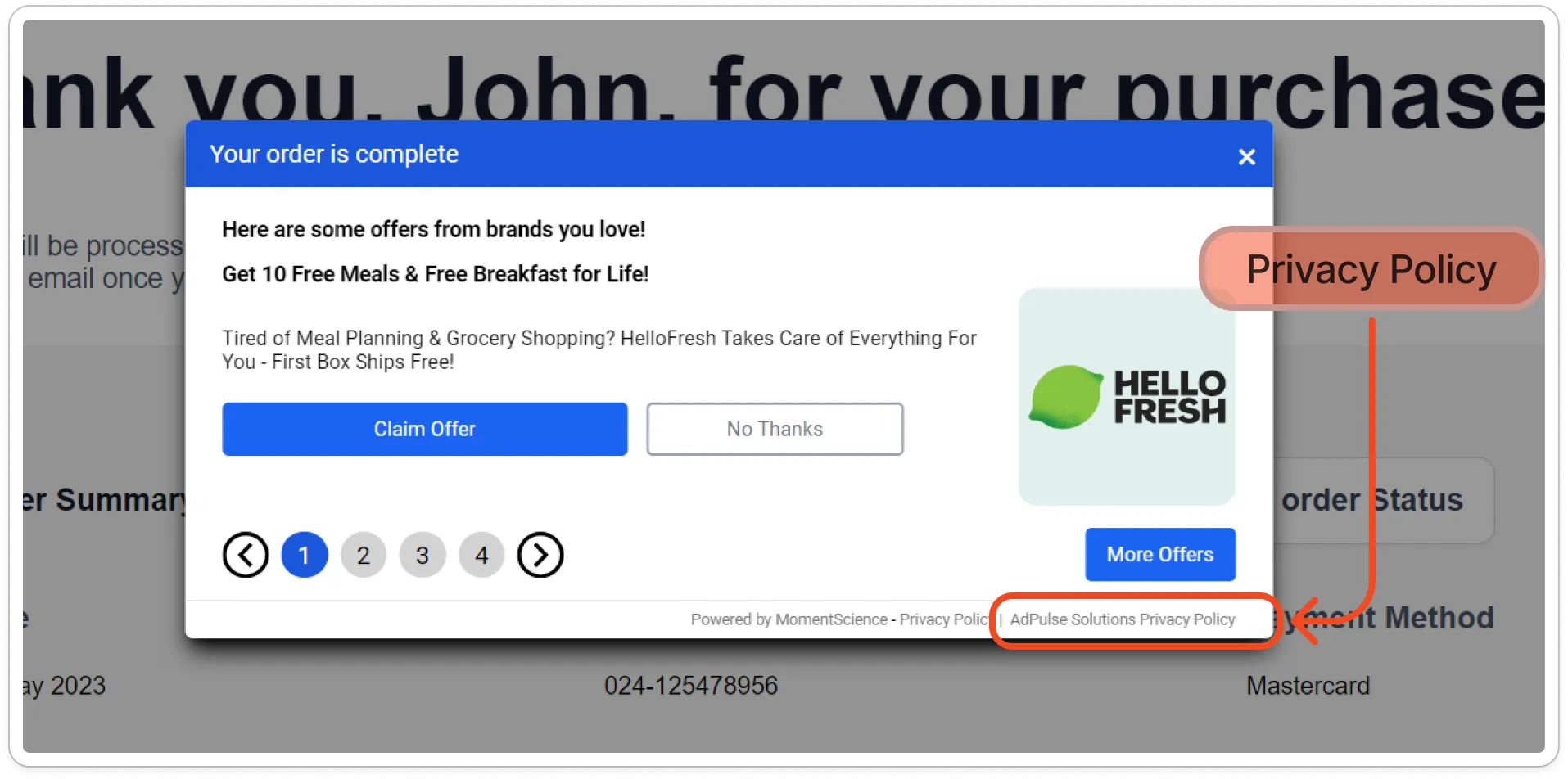
Enter the URL for your privacy policy. This link will appear in the footer of the MomentScience Offer unit. If left blank, no Privacy Policy link will be shown.
Postbacks and Webhooks
Postback URL
Use this to receive real-time conversion event notifications on your server.
- Choose the request method: POST or GET
- Enter the URL where conversion events should be sent
- Click Test Postback to send a dummy event and confirm your endpoint is receiving correctly
For full details on supported parameters and payload structure, refer to the Postback documentation.
Webhook (PerksWallet)
Use this webhook to receive real-time PerksWallet event notifications on your server.
- Choose the request method: POST or GET
- Enter the webhook URL
- Click Test Webhook to send a sample request and confirm the endpoint is working.
Webhook (User Selected Perks)
Use this webhook to receive real-time User Selected Perks event notifications on your server.
- Choose the request method: POST or GET
- Enter the webhook URL
- Click Test Webhook to send a sample request and confirm the endpoint is working
LoyaltyBoost Advanced Settings
These settings allow you to define the currency and multiplier for loyalty rewards.
LoyaltyBoost Offers reward users with Loyalty currency for engaging with specific offers. These offers are added to your account, allowing you to reward users based on the offer’s payout after a revenue conversion. To enable this feature, contact your account manager. Learn more about LoyaltyBoost.
Currency Name - Singular
Specify the singular form of the currency name.
Currency Name - Plural
Specify the plural form of the currency name.
Currency Multiplier
Set the multiplier to determine how many loyalty points are earned per unit of currency.
Show Multi Offer Unit
Enabling this option activates a Multi-Offer Unit (MOU), displaying multiple offers at once instead of the default Single-Offer Unit (SOU), which shows only one offer at a time.
Reports
Configure email settings to receive daily and/or weekly reports. Ensure that the desired options are enabled and provide email addresses to start receiving reports.
- Default Value: Disabled
To activate email reports for your account, please get in touch with your account manager.
Enable Daily Email Report
Toggle this setting to receive daily reports via email. Reports are sent at set times each day, following the CT timezone.
Enable Weekly Email Report
Toggle this setting to receive weekly reports via email. You can add multiple email addresses. Select the specific day of the week and time for the weekly report to be sent.
📢 If you're running into any issues while going through the integration process, feel free to contact us at [email protected]